CenterPoint Accounting
- Register CenterPoint
Register CenterPoint & Federal/State Tax Forms (Aatrix) Video - Duration: 5 min 28 sec_24.jpg)
| Document #: | 3020 | Product: | CenterPoint® |
|---|
When CenterPoint is installed on your computer it will be in a 30 day demo mode until the software is registered. You will be prompted to register the software when the program is loaded. The registration number provides you with a license for the products you have purchased.
Your software will need to be registered again each time a new major version is installed. Minor maintenance versions will not require you to reregister. We offer two options for registering the software:
If you would like to register your software but have already closed the Registration form, click on Help > Product Registration > CenterPoint Registration at the main CenterPoint menu.
Option A: Online Registration
- When CenterPoint is first opened on your computer it will display a Registration screen. Click Online.
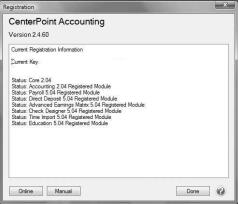
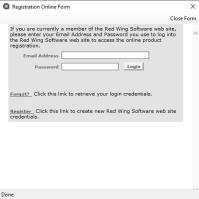
- The Registration Online form will be displayed. If you are currently a member of the Red Wing Software website, enter your Username and Password, then click Login to access the online product registration.
- If you haven’t registered on our website previously, click the New Member Registration link. On the Company Information screen, enter the required information, and then click Next.
- If you are currently a member of the Red Wing Software website and you forgot your Username and Password, click the Forgot Login Info link. After you receive your Username and Password via your e-mail address, enter your Username and Password, and then click Login to access the online product registration.
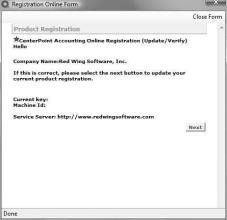
- On the next Registration screen, your registration information will display, click Next.
- Click OK.
- On the next Registration screen, click E-mail to receive a copy of the information via your e-mail address. Save this email. Click OK. Then click Close Form.
Option B: Register Manually (use this option only if you do not have internet access on this machine)
- At the Registration screen, click on Manual.
- On the Registration Key Entry screen, enter the registration key provided to you in the Registration Key field. Then click Save. When you enter the registration key:
- It is not necessary to enter the dashes
- Either upper/lower case letters can be entered
- The letters I, Q, O and S will not be a part of the registration key. For example, all "0" characters are the number zero.
 See Also